


While overlay, or union, file systems are not strictly necessary for running containers, they provide many benefits, and make things much more efficient, so they are universally used. An image needs to provide a file system for the container to run, and overlay file systems allow large parts of these file systems to be shared between images.
File systems are built in layers, starting with a base layer, and then every time a change is made to the file system, a new layer is added on top.
Let's say we start off with a base layer, known as lowerdir, that contains 3 files:

We then want to add a new file to the file system, so that creates a new layer on top of lowerdir:
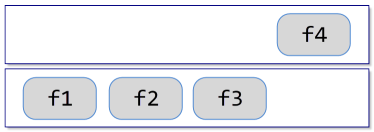
If you imagine someone looking down from above, they will see a merged view of the file system, consisting of files f1, f2 and f3 in lowerdir, plus the new f4 that we just added.
Let's say we want to change f1 - this causes another new layer to be created, with the modified version of the file:
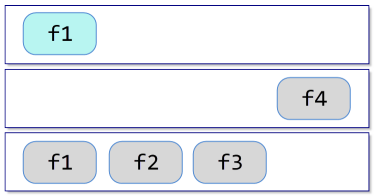
Now, when we look down and into the merged file system, the modified version of f1 obscures the original version, we can still see the original f2 and f3 from the base layer, as well as the new f4 that we added in the previous step.
Finally, if we want to delete a file e.g. f3, a new layer is created with a whiteout, that obscures the target file, making it look like it's not there:
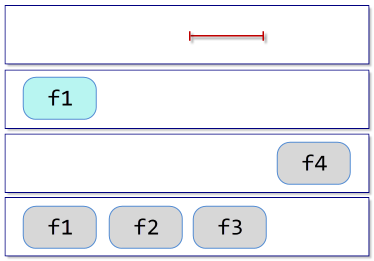
After all this, if we look down into the merged file system, this is what we see:

Re-using layers
Building up a file system in layers like this lets us do things more efficiently, by re-using layers.
Let's say we've written a program that should run on Alpine 3.22.1. We start off the base layer that contains all the files that make up Alpine (about 8.3 MB of files):

We then add in our program, a single binary, which creates a new layer:
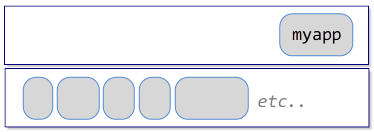
If we then write another program, we can create another image in the same way:
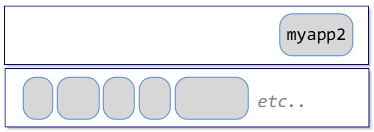
The Alpine base layer will be re-used, which is particularly important if you're pulling these images down from a remote registry - if you already have a layer, you won't need to download it again, even if it's being used for something else.
| We can see this happening if we pull down Alpine v3.22.1. |
$ docker pull alpine:3.22.1 3.22.1: Pulling from library/alpine 9824c27679d3: Pull complete Digest: sha256:4bcff63911fcb4448bd4fdacec207030997caf25e9bea4045fa6c8c44de311d1 Status: Downloaded newer image for alpine:3.22.1 docker.io/library/alpine:3.22.1 |
| And then alpine/git, which is Alpine with git installed. |
$ docker pull alpine/git:v2.49.1 v2.49.1: Pulling from alpine/git 9824c27679d3: Already exists 217ae86be20f: Pull complete 27860de4129a: Pull complete Digest: sha256:bd54f921f6d803dfa3a4fe14b7defe36df1b71349a3e416547e333aa960f86e3 Status: Downloaded newer image for alpine/git:v2.49.1 docker.io/alpine/git:v2.49.1 |
alpine/git v2.49.1 is built on top of Alpine 3.22.1, and since we've already downloaded that layer (with ID 9824c27679d3), we don't need to get it again.
Making changes to the file system at run-time
All these layers are immutable (so that they can be re-used), but when we run a container, it needs to be able to make changes to files, create new files, etc. To handle this, another layer is created when the container is started, known as upperdir, and any changes made at run-time happen here.
This lets us run multiple instances of an image simultaneously, each with the same base file system, but each with their own upperdir for them to make their own changes in. When a container ends, this layer is thrown away, and if another container is run from the same image, it gets a new upperdir, thus allowing it start afresh.
An example of creating an overlay file system
We'll work through the examples described at the start of this section.
Setting up the base layer
|
First, we need to set up our directories, and the files in the base layer: $ mkdir lower upper merged work $ echo "file 1" >lower/f1 $ echo "file 2" >lower/f2 $ echo "file 3" >lower/f3 The merged/ directory is empty, since we haven't set up the overlay yet: $ ls -l merged/ total 0 Create an overlay mount, with our lower and upper layers, and the merged view in merged/: $ sudo mount overlay -t overlay -o lowerdir=lower/,upperdir=upper/,workdir=work/ merged/ The merged/ directory now shows the merged contents of the 2 layers[1]The upper and lower layers, although right now, the upper layer is empty.: $ ls -l merged/ total 12 -rw-r--r--. 1 taka taka 7 Sep 27 02:09 f1 -rw-r--r--. 1 taka taka 7 Sep 27 02:09 f2 -rw-r--r--. 1 taka taka 7 Sep 27 02:09 f3 |
|
Adding a new file
|
Let's add a new file f4, in the merged/ directory: $ echo "file 4" >merged/f4 Yes, the new file is in the merged view: $ ls -l merged/ total 16 -rw-r--r--. 1 taka taka 7 Sep 27 02:09 f1 -rw-r--r--. 1 taka taka 7 Sep 27 02:09 f2 -rw-r--r--. 1 taka taka 7 Sep 27 02:09 f3 -rw-r--r--. 1 taka taka 7 Sep 27 02:10 f4 But it's not in the lower layer: $ ls -l lower/ total 12 -rw-r--r--. 1 taka taka 7 Sep 27 02:09 f1 -rw-r--r--. 1 taka taka 7 Sep 27 02:09 f2 -rw-r--r--. 1 taka taka 7 Sep 27 02:09 f3 The lower layer is immutable, and even though we created our new file in merged/, it was actually created in the upper layer: $ ls -l upper/ total 4 -rw-r--r--. 1 taka taka 7 Sep 27 02:10 f4 |
|
Modifying an existing file
|
Let's modify f1, again in merged/: $ echo "file 1 (modified)" >merged/f1 We now see a new file in the upper directory: $ ls -l merged/ total 16 -rw-r--r--. 1 taka taka 18 Sep 27 02:13 f1 -rw-r--r--. 1 taka taka 7 Sep 27 02:09 f2 -rw-r--r--. 1 taka taka 7 Sep 27 02:09 f3 -rw-r--r--. 1 taka taka 7 Sep 27 02:10 f4 $ ls -l lower/ total 12 -rw-r--r--. 1 taka taka 7 Sep 27 02:09 f1 -rw-r--r--. 1 taka taka 7 Sep 27 02:09 f2 -rw-r--r--. 1 taka taka 7 Sep 27 02:09 f3 $ ls -l upper/ total 8 -rw-r--r--. 1 taka taka 18 Sep 27 02:13 f1 -rw-r--r--. 1 taka taka 7 Sep 27 02:10 f4 If we inspect the contents of the 3 versions of f1: $ cat lower/f1 file 1 $ cat upper/f1 file 1 (modified) $ cat merged/f1 file 1 (modified) lower/f1 is unchanged (because the lower layer is immutable), the modified version is stored in the upper layer, and this is the one we see in the merged view. |
|
Deleting a file
|
Finally, let's delete f3, again in merged/: $ rm merged/f3 rm: remove regular file 'merged/f3'? y It's gone from the merged view: $ ls -l merged/ total 12 -rw-r--r--. 1 taka taka 18 Sep 27 02:13 f1 -rw-r--r--. 1 taka taka 7 Sep 27 02:09 f2 -rw-r--r--. 1 taka taka 7 Sep 27 02:10 f4 But it's still there in the lower layer (because this layer is immutable): $ ls -l lower/ total 12 -rw-r--r--. 1 taka taka 7 Sep 27 02:09 f1 -rw-r--r--. 1 taka taka 7 Sep 27 02:09 f2 -rw-r--r--. 1 taka taka 7 Sep 27 02:09 f3 In the upper layer, we now have a special whiteout file that indicates that the file has been deleted, and this is what the merged view sees: $ ls -l upper/ total 8 -rw-r--r--. 1 taka taka 18 Sep 27 02:13 f1 c---------. 2 root root 0, 0 Sep 27 02:15 f3 -rw-r--r--. 1 taka taka 7 Sep 27 02:10 f4 |
|
The final merged view
|
If we take a look at the final merged view, this is what we see: $ ls -l merged/ total 12 -rw-r--r--. 1 taka taka 18 Sep 27 02:13 f1 -rw-r--r--. 1 taka taka 7 Sep 27 02:09 f2 -rw-r--r--. 1 taka taka 7 Sep 27 02:10 f4 $ cat merged/f1 file 1 (modified) $ cat merged/f2 file 2 $ cat merged/f3 cat: merged/f3: No such file or directory $ cat merged/f4 file 4 To clean up, we delete the overlay mount: $ sudo umount merged/ Which, of course, makes our merged view of the lower and upper layers disappear: $ ls -l merged/ total 0 |
|
References
| ↵1 | The upper and lower layers, although right now, the upper layer is empty. |
|---|


 I am a
