


In this section, we'll take a look at a real-life Docker image, and what happens when it runs as a container.
Taking a look inside a Docker image
First, let's get a Docker image that runs nginx:
$ docker pull nginx:1.29.1-alpine
1.29.1-alpine: Pulling from library/nginx
9824c27679d3: Pull complete
6bc572a340ec: Pull complete
403e3f251637: Pull complete
9adfbae99cb7: Pull complete
7a8a46741e18: Pull complete
c9ebe2ff2d2c: Pull complete
a992fbc61ecc: Pull complete
cb1ff4086f82: Pull complete
Digest: sha256:42a516af16b852e33b7682d5ef8acbd5d13fe08fecadc7ed98605ba5e3b26ab8
Status: Downloaded newer image for nginx:1.29.1-alpine
docker.io/library/nginx:1.29.1-alpine
Let's take a look at what we got:
$ docker inspect nginx:1.29.1-alpine
[
...snip...
    {
        "Architecture": "amd64",   ← the CPU architecture and OS this image is for
        "Os": "linux",
...snip...
        "RootFS": {   ↓ the root file system the container will start with
            "Type": "layers",
            "Layers": [
                "sha256:418dccb7d85a63a6aa574439840f7a6fa6fd2321b3e2394568a317735e867d35",
                "sha256:b6ff0212304efd5de6311b4e727f4bd05fc63af88535439035f997cebdc5d009",
                "sha256:7978a9c91f722f830483a8564f1f45ea2de69467ae9eb202744651a7cded90d7",
                "sha256:16ca725632e5c0cb9010a6a0a703017a42ba36997de90b62d9aa9f152b6f3db5",
                "sha256:917b2c97271ec45eedfc9bc6aa3f52cf3e88550e5de87b4273736472db4247b1",
                "sha256:a2b76470e8f1cd1ec142fd58ab96656d719d62944029299b14ab6a418df84fa0",
                "sha256:d208138be39ddf6e3327493a5b1298a4e577faef5c09c2b91d82e2ca42698a84",
                "sha256:f9985d3fc94dfae94021c560b6c8878e21f19f39a4c1f58051a535d2f0c2b165"
            ]
        },
...snip...
        "Config": {
            "Cmd": [
                "nginx",
                "-g",
                "daemon off;"
            ],
            "Entrypoint": [
                "/docker-entrypoint.sh"   ← the command that will be run when the container starts
            ],
            "Env": [   ↓ environment variables that will be set inside the container
                "PATH=/usr/local/sbin:/usr/local/bin:/usr/sbin:/usr/bin:/sbin:/bin",
                "NGINX_VERSION=1.29.1",
                "PKG_RELEASE=1",
                "DYNPKG_RELEASE=1",
                "NJS_VERSION=0.9.1",
                "NJS_RELEASE=1"
            ],
            "ExposedPorts": {
                "80/tcp": {}   ← nginx is listening on port 80 inside container; this lets clients outside the container connect to it
            },
...snip...
        }
    }
]
If we take a look at how the image was built:
$ docker history nginx:1.29.1-alpine
IMAGE          CREATED        CREATED BY                                      SIZE      COMMENT
4a86014ec699   6 weeks ago    RUN /bin/sh -c set -x     && apkArch="$(cat …   40.1MB    buildkit.dockerfile.v0
<missing>      6 weeks ago    ENV NJS_RELEASE=1                               0B        buildkit.dockerfile.v0
<missing>      6 weeks ago    ENV NJS_VERSION=0.9.1                           0B        buildkit.dockerfile.v0
<missing>      6 weeks ago    CMD ["nginx" "-g" "daemon off;"]                0B        buildkit.dockerfile.v0
<missing>      6 weeks ago    STOPSIGNAL SIGQUIT                              0B        buildkit.dockerfile.v0
<missing>      6 weeks ago    EXPOSE map[80/tcp:{}]                           0B        buildkit.dockerfile.v0
<missing>      6 weeks ago    ENTRYPOINT ["/docker-entrypoint.sh"]            0B        buildkit.dockerfile.v0
<missing>      6 weeks ago    COPY 30-tune-worker-processes.sh /docker-ent…   4.62kB    buildkit.dockerfile.v0
<missing>      6 weeks ago    COPY 20-envsubst-on-templates.sh /docker-ent…   3.02kB    buildkit.dockerfile.v0
<missing>      6 weeks ago    COPY 15-local-resolvers.envsh /docker-entryp…   389B      buildkit.dockerfile.v0
<missing>      6 weeks ago    COPY 10-listen-on-ipv6-by-default.sh /docker…   2.12kB    buildkit.dockerfile.v0
<missing>      6 weeks ago    COPY docker-entrypoint.sh / # buildkit          1.62kB    buildkit.dockerfile.v0
<missing>      6 weeks ago    RUN /bin/sh -c set -x     && addgroup -g 101…   4.13MB    buildkit.dockerfile.v0
<missing>      6 weeks ago    ENV DYNPKG_RELEASE=1                            0B        buildkit.dockerfile.v0
<missing>      6 weeks ago    ENV PKG_RELEASE=1                               0B        buildkit.dockerfile.v0
<missing>      6 weeks ago    ENV NGINX_VERSION=1.29.1                        0B        buildkit.dockerfile.v0
<missing>      6 weeks ago    LABEL maintainer=NGINX Docker Maintainers <d…   0B        buildkit.dockerfile.v0
<missing>      2 months ago   CMD ["/bin/sh"]                                 0B        buildkit.dockerfile.v0
<missing>      2 months ago   ADD alpine-minirootfs-3.22.1-x86_64.tar.gz /…   8.31MB    buildkit.dockerfile.v0
we can see that there were 8 steps that resulted in a change to a file system[1]They have a non-zero value in the SIZE column., and so a new layer was created, which corresponds to the 8 layers in the docker inspect output above.
If we want to take a look at the layers, it turns out that it's a little involved[2]But see the dive tool below.. We could, of course, just run the container, and then start a shell inside it and have a poke around, but that's not quite what we want, since changes may be made to the file system after the container starts.
So, we'll export the image out of Docker again, but we can do it a little more quickly than before, and skip creating the export file:
$ mkdir /tmp/nginx-1.29.1-alpine

$ cd /tmp/nginx-1.29.1-alpine

$ docker save nginx:1.29.1-alpine | tar x

$ ls -l
total 16
drwxr-xr-x. 3 taka taka   60 Aug 13 16:34 blobs
-rw-r--r--. 1 taka taka  376 Jan  1  1970 index.json
-rw-r--r--. 1 taka taka 2598 Jan  1  1970 manifest.json
-rw-r--r--. 1 taka taka   31 Jan  1  1970 oci-layout
-rw-r--r--. 1 taka taka   95 Jan  1  1970 repositories
Let's take a look at the manifest:
$ jq <manifest.json
[
  {
    "Config": "blobs/sha256/4a86014ec6994761b7f3118cf47e4b4fd6bac15fc6fa262c4f356386bbc0e9d9",
    "RepoTags": [
      "nginx:1.29.1-alpine"
    ],
    "Layers": [
      "blobs/sha256/418dccb7d85a63a6aa574439840f7a6fa6fd2321b3e2394568a317735e867d35",
      "blobs/sha256/b6ff0212304efd5de6311b4e727f4bd05fc63af88535439035f997cebdc5d009",
      "blobs/sha256/7978a9c91f722f830483a8564f1f45ea2de69467ae9eb202744651a7cded90d7",
      "blobs/sha256/16ca725632e5c0cb9010a6a0a703017a42ba36997de90b62d9aa9f152b6f3db5",
      "blobs/sha256/917b2c97271ec45eedfc9bc6aa3f52cf3e88550e5de87b4273736472db4247b1",
      "blobs/sha256/a2b76470e8f1cd1ec142fd58ab96656d719d62944029299b14ab6a418df84fa0",
      "blobs/sha256/d208138be39ddf6e3327493a5b1298a4e577faef5c09c2b91d82e2ca42698a84",
      "blobs/sha256/f9985d3fc94dfae94021c560b6c8878e21f19f39a4c1f58051a535d2f0c2b165"
    ],
    "LayerSources": {
...snip...
    }
  }
]
As per the spec, it contains a reference to a config, and one or more layers, starting with the base layer, working up.
If we take a look at the config:
$ jq <blobs/sha256/4a86014ec6994761b7f3118cf47e4b4fd6bac15fc6fa262c4f356386bbc0e9d9
{
...snip...
  "os": "linux",
  "rootfs": {
    "type": "layers",
    "diff_ids": [
      "sha256:418dccb7d85a63a6aa574439840f7a6fa6fd2321b3e2394568a317735e867d35",
      "sha256:b6ff0212304efd5de6311b4e727f4bd05fc63af88535439035f997cebdc5d009",
      "sha256:7978a9c91f722f830483a8564f1f45ea2de69467ae9eb202744651a7cded90d7",
      "sha256:16ca725632e5c0cb9010a6a0a703017a42ba36997de90b62d9aa9f152b6f3db5",
      "sha256:917b2c97271ec45eedfc9bc6aa3f52cf3e88550e5de87b4273736472db4247b1",
      "sha256:a2b76470e8f1cd1ec142fd58ab96656d719d62944029299b14ab6a418df84fa0",
      "sha256:d208138be39ddf6e3327493a5b1298a4e577faef5c09c2b91d82e2ca42698a84",
      "sha256:f9985d3fc94dfae94021c560b6c8878e21f19f39a4c1f58051a535d2f0c2b165"
    ]
  }
}
we get output that looks suspiciously like the output from the docker inspect we ran above. In particular, the hash ID's of the 8 layers match up.
The last layer created (f9985d3f...) was created by a massive RUN command, which you can see in the image's config file:
$ jq <blobs/sha256/4a86014ec6994761b7f3118cf47e4b4fd6bac15fc6fa262c4f356386bbc0e9d9
{
...snip....
      "created": "2025-08-13T16:34:01Z",
      "created_by": "RUN /bin/sh -c set -x     && apkArch=\"$(cat /etc/apk/arch)\"
        ...snip...
    && apk add --no-cache curl ca-certificates # buildkit",
  "comment": "buildkit.dockerfile.v0"
}
The last thing it does is install curl and ca-certificates, so let's see how that worked.
We find out where the layer data lives from manifest.json:
$ jq <manifest.json
[
  {
    "Config": "blobs/sha256/4a86014ec6994761b7f3118cf47e4b4fd6bac15fc6fa262c4f356386bbc0e9d9",
    "RepoTags": [
      "nginx:1.29.1-alpine"
    ],
    "Layers": [
      "blobs/sha256/418dccb7d85a63a6aa574439840f7a6fa6fd2321b3e2394568a317735e867d35",
      "blobs/sha256/b6ff0212304efd5de6311b4e727f4bd05fc63af88535439035f997cebdc5d009",
      "blobs/sha256/7978a9c91f722f830483a8564f1f45ea2de69467ae9eb202744651a7cded90d7",
      "blobs/sha256/16ca725632e5c0cb9010a6a0a703017a42ba36997de90b62d9aa9f152b6f3db5",
      "blobs/sha256/917b2c97271ec45eedfc9bc6aa3f52cf3e88550e5de87b4273736472db4247b1",
      "blobs/sha256/a2b76470e8f1cd1ec142fd58ab96656d719d62944029299b14ab6a418df84fa0",
      "blobs/sha256/d208138be39ddf6e3327493a5b1298a4e577faef5c09c2b91d82e2ca42698a84",
      "blobs/sha256/f9985d3fc94dfae94021c560b6c8878e21f19f39a4c1f58051a535d2f0c2b165"
    ],
...snip...
  }
]
Since the layers are listed from the bottom up, if we want the top-most layer, it will be the last one in the list.
Let's go into that layer and see what's there:
$ mkdir layer

$ tar xf f9985d3fc94dfae94021c560b6c8878e21f19f39a4c1f58051a535d2f0c2b165 -C layer/

$ cd layer/

$ ls -l usr/bin/curl
-rwxr-xr-x. 1 taka taka 256216 Jun 29 16:38 usr/bin/curl

$ ls -l etc/
total 8
drwxr-xr-x.  3 taka taka   80 Aug 13 18:58 apk
drwxr-xr-x.  3 taka taka   60 Aug 13 18:58 ca-certificates
-rw-r--r--.  1 taka taka 5730 Jul 15 10:35 ca-certificates.conf
drwxr-xr-x.  3 taka taka   80 Aug 13 18:58 fonts
drwxr-xr-x.  3 taka taka   60 Jul 15 10:42 ssl
drwxr-xr-x. 13 taka taka  260 Aug 13 18:58 terminfo

$ tree etc/ca-certificates/
etc/ca-certificates/
└── update.d
    └── certhash

2 directories, 1 file
Since layers contain only the changes made to the file system built up so far, the fact that these files are in this layer's directory means that these files were added to the overall file system as part of this layer, which matches up with what we would expect when running apk add curl ca-certificates.
This process can be repeated for each layer in the image e.g. for the next layer up[3]Note that while there are Docker commands between this one and the final big RUN command, none of them affected the file system, and so there was no need to create a new image layer. (i.e. 2nd top-most):
$ mkdir layer2

$ tar xf d208138be39ddf6e3327493a5b1298a4e577faef5c09c2b91d82e2ca42698a84 -C layer2

$ tree layer2/
layer2/
└── docker-entrypoint.d
    └── 30-tune-worker-processes.sh

2 directories, 1 file
which matches what we see in the Docker commands:
COPY 30-tune-worker-processes.sh /docker-entrypoint.d
Taking a look inside a Docker container
Now we've seen what's inside the image, lets turn it into a running container:
$ docker run --name nginx --rm -p 8080:80 nginx:1.29.1-alpine
/docker-entrypoint.sh: /docker-entrypoint.d/ is not empty, will attempt to perform configuration
/docker-entrypoint.sh: Looking for shell scripts in /docker-entrypoint.d/
   ...snip...
2025/09/27 03:11:02 [notice] 1#1: start worker processes
2025/09/27 03:11:02 [notice] 1#1: start worker process 30
2025/09/27 03:11:02 [notice] 1#1: start worker process 31
2025/09/27 03:11:02 [notice] 1#1: start worker process 32
2025/09/27 03:11:02 [notice] 1#1: start worker process 33
Namespaces
From another terminal, jump into the container and take a look at what's running:
$ docker exec -it nginx /bin/sh
/ # ps
PID   USER     TIME  COMMAND
    1 root      0:00 nginx: master process nginx -g daemon off;
   30 nginx     0:00 nginx: worker process
   31 nginx     0:00 nginx: worker process
   32 nginx     0:00 nginx: worker process
   33 nginx     0:00 nginx: worker process
   34 root      0:00 /bin/sh
   40 root      0:00 ps
We can see the main nginx process, which is the init process for the container (since it has a PID of 1), and 4 worker processes that it's started to handle incoming requests[4]The last 2 processes are the shell we started (to get into the container), and the ps command we just ran..
Exit the container, and let's find the corresponding nginx processes on the host machine[5]Because processes run in the context of their host machine, not in a completely separate virtual machine.:
$ ps aux | grep nginx
taka        5842  0.0  0.6 1845788 26868 pts/0   Sl+  03:11   0:00 docker run --name nginx --rm -p 8080:80 nginx:1.29.1-alpine
root        5884  0.0  0.1  10176  5988 ?        Ss   03:11   0:00 nginx: master process nginx -g daemon off;
101         5973  0.0  0.0  10672  2632 ?        S    03:11   0:00 nginx: worker process
101         5974  0.0  0.0  10672  2632 ?        S    03:11   0:00 nginx: worker process
101         5975  0.0  0.0  10672  2632 ?        S    03:11   0:00 nginx: worker process
101         5976  0.0  0.0  10672  2760 ?        S    03:11   0:00 nginx: worker process
taka        6050  0.0  0.0 231252  2416 pts/1    S+   03:12   0:00 grep nginx
We can see the 5 nginx processes, but they have different PID's.
Let's take a look at what namespaces the main nginx process (5884) is in:
$ sudo lsns -p 5884
        NS TYPE   NPROCS   PID USER COMMAND
4026531834 time      290     1 root /usr/lib/systemd/systemd --switched-root --system --deserialize=48 rhgb
4026531837 user      287     1 root /usr/lib/systemd/systemd --switched-root --system --deserialize=48 rhgb
4026533011 mnt         5  5884 root nginx: master process nginx -g daemon off;
4026533012 uts         5  5884 root nginx: master process nginx -g daemon off;
4026533013 ipc         5  5884 root nginx: master process nginx -g daemon off;
4026533014 pid         5  5884 root nginx: master process nginx -g daemon off;
4026533015 cgroup      5  5884 root nginx: master process nginx -g daemon off;
4026533016 net         5  5884 root nginx: master process nginx -g daemon off;
If you do the same for the 4 worker processes, you will see that they are in the same namespaces, which makes sense - Docker has created new mnt, uts, etc. namespaces for the container, and then any processes that run in that container are placed in those namespaces, so that they all share a common view of the world.
If we take a look at the /proc pseudo-filesystem for the main nginx process:
$ sudo ls -l /proc/5884/ns
total 0
lrwxrwxrwx. 1 root root 0 Sep 27 03:12 cgroup -> 'cgroup:[4026533015]'
lrwxrwxrwx. 1 root root 0 Sep 27 03:12 ipc -> 'ipc:[4026533013]'
lrwxrwxrwx. 1 root root 0 Sep 27 03:11 mnt -> 'mnt:[4026533011]'
lrwxrwxrwx. 1 root root 0 Sep 27 03:11 net -> 'net:[4026533016]'
lrwxrwxrwx. 1 root root 0 Sep 27 03:12 pid -> 'pid:[4026533014]'
lrwxrwxrwx. 1 root root 0 Sep 27 03:14 pid_for_children -> 'pid:[4026533014]'
lrwxrwxrwx. 1 root root 0 Sep 27 03:13 time -> 'time:[4026531834]'
lrwxrwxrwx. 1 root root 0 Sep 27 03:14 time_for_children -> 'time:[4026531834]'
lrwxrwxrwx. 1 root root 0 Sep 27 03:13 user -> 'user:[4026531837]'
lrwxrwxrwx. 1 root root 0 Sep 27 03:12 uts -> 'uts:[4026533012]'
we can see that pid maps to the 4026533014 namespace, the same as reported by lsns.
If we check what's in this namespace, we can see the main nginx process, and its 4 child workers:
$ sudo lsns 4026533014
  PID  PPID USER COMMAND
 5884  5859 root nginx: master process nginx -g daemon off;
 5973  5884 101  ├─nginx: worker process
 5974  5884 101  ├─nginx: worker process
 5975  5884 101  ├─nginx: worker process
 5976  5884 101  └─nginx: worker process
Control groups
If we take a look at what cgroup the processes are running in:
$ cat /proc/5884/cgroup
1:net_cls:/
0::/system.slice/docker-fafe4ff7460c32a33aa8b5d9b042709c19440e4a032c2e04e37b87f2ef6b5b55.scope
we can see that it's being managed by systemd, which has this to say about it:
$ systemctl status 5884 ◠docker-fafe4ff7460c32a33aa8b5d9b042709c19440e4a032c2e04e37b87f2ef6b5b55.scope - libcontainer container fafe4ff7460c32a33aa8b5d9b042709c19440e4a032c2e04e37b87f2ef6b5b55 Loaded: loaded (/run/systemd/transient/docker-fafe4ff7460c32a33aa8b5d9b042709c19440e4a032c2e04e37b87f2ef6b5b55.scope; transient) Transient: yes Drop-In: /run/systemd/transient/docker-fafe4ff7460c32a33aa8b5d9b042709c19440e4a032c2e04e37b87f2ef6b5b55.scope.d └─50-DeviceAllow.conf, 50-DevicePolicy.conf Active: active (running) since Sat 2025-09-27 03:11:02 UTC; 6min ago Invocation: 2f1f6291f15b49f99bed890bf73eb7b6 IO: 184K read, 28K written Tasks: 5 (limit: 4461) Memory: 4.9M (peak: 7.3M) CPU: 73ms CGroup: /system.slice/docker-fafe4ff7460c32a33aa8b5d9b042709c19440e4a032c2e04e37b87f2ef6b5b55.scope ├─5884 "nginx: master process nginx -g daemon off;" ├─5973 "nginx: worker process" ├─5974 "nginx: worker process" ├─5975 "nginx: worker process" └─5976 "nginx: worker process" Sep 27 03:11:02 vm-tutorial systemd[1]: Started docker-fafe4ff7460c32a33aa8b5d9b042709c19440e4a032c2e04e37b87f2ef6b5b55.scope - libcontainer container fafe4ff7460c32a33aa8b5d9b042709c19440e4a032c2e04e37b87f2ef6b5b55.
and again, we can see that our 5 nginx processes have been assigned to the same cgroup.
"Slices" are what systemd uses to manage resources[6]Think of carving slices out of a pie, and then smaller slices out of those. and this is how our slice has been configured:
$ systemctl show docker-fafe4ff7460c32a33aa8b5d9b042709c19440e4a032c2e04e37b87f2ef6b5b55.scope
TimeoutStopUSec=45s
Result=success
RuntimeMaxUSec=infinity
RuntimeRandomizedExtraUSec=0
OOMPolicy=continue
Slice=system.slice
ControlGroup=/system.slice/docker-fafe4ff7460c32a33aa8b5d9b042709c19440e4a032c2e04e37b87f2ef6b5b55.scope
ControlGroupId=16088
...snip...
InvocationID=2f1f6291f15b49f99bed890bf73eb7b6
CollectMode=inactive
DebugInvocation=no
Overlay file system
If we check how the container has set up its file system:
$ docker inspect nginx | grep 'Dir"'
                "LowerDir": "/var/lib/docker/overlay2/60c557c9c00f6a803af20d5634f821dc77db66b477806eb811e49c0d49a60613-init/diff:/var/lib/docker/overlay2/fa13575c44207378751dbcb416e87a2641cc9568372fa1197aa9d4481e920b15/diff:/var/lib/docker/overlay2/0a874a2dfb07502719f0f4f1881498edc41c4c898a0f0fbc6432e33a277d264b/diff:/var/lib/docker/overlay2/358ef313db6733e55b4b645fce8e9cdfe91242dc18b57f81f447557a89153bc3/diff:/var/lib/docker/overlay2/77497353e6297e5fab757a3c2899b50567bbdf3cdbb0825a53df083e66b1f541/diff:/var/lib/docker/overlay2/6aa3c228b3552a72679f71ba450642a891b369cee48fd589f87ca9a5d6c47e3e/diff:/var/lib/docker/overlay2/e10a6615cfbcf0db1895ff11ee394744ef27f5c6a0c30e46bb84d601e2ec938d/diff:/var/lib/docker/overlay2/270f2ac61a09bbfe890c9fcb123cf6b5dcff7fec3b2d9347889120dc575eeaf4/diff:/var/lib/docker/overlay2/59b275f3b603b8f9cb9d5e77e91ca983e9c130b4c1b18f81076f14fb3ab96231/diff",
                "MergedDir": "/var/lib/docker/overlay2/60c557c9c00f6a803af20d5634f821dc77db66b477806eb811e49c0d49a60613/merged",
                "UpperDir": "/var/lib/docker/overlay2/60c557c9c00f6a803af20d5634f821dc77db66b477806eb811e49c0d49a60613/diff",
                "WorkDir": "/var/lib/docker/overlay2/60c557c9c00f6a803af20d5634f821dc77db66b477806eb811e49c0d49a60613/work"
            "WorkingDir": "/",
we can see where the layers from the image have been unpacked to, and in particular, where the merged view lives. If you have a poke around in that directory on the host, it will match what's in the container.
We can also see the layers mounted in the host computer:
$ mount | grep overlay
overlay on /var/lib/docker/overlay2/60c557c9c00f6a803af20d5634f821dc77db66b477806eb811e49c0d49a60613/merged type overlay (rw,relatime,context="system_u:object_r:container_file_t:s0:c441,c603",lowerdir=/var/lib/docker/overlay2/l/FMEKDJT6RXEQIUVVK6MAE5A376:/var/lib/docker/overlay2/l/E24FXIY225OMECFT6W2HPNGRFR:/var/lib/docker/overlay2/l/XZXKJN7VPVDGYTKDVJ27MQZFUF:/var/lib/docker/overlay2/l/HUOD7472QEGZRTD6WWLV7LM5VD:/var/lib/docker/overlay2/l/CR64GT2Z63DUVPD4HGFFXE5INI:/var/lib/docker/overlay2/l/QO77YOSETLS53LQHG75RZXAJ2K:/var/lib/docker/overlay2/l/6LIJCVK7NLL6V3IJTKQ22M73A5:/var/lib/docker/overlay2/l/CP56EAPL4RFLXO3HSBNTLCWL2N:/var/lib/docker/overlay2/l/CD5R3T7VOVEGA4J3ZADTTICA3C,upperdir=/var/lib/docker/overlay2/60c557c9c00f6a803af20d5634f821dc77db66b477806eb811e49c0d49a60613/diff,workdir=/var/lib/docker/overlay2/60c557c9c00f6a803af20d5634f821dc77db66b477806eb811e49c0d49a60613/work)
Note that the files in this mount are what the container sees, so if you make changes to the file system in the container, it will also appear in the host (and vice versa). For example:
On the host computer:
# there's nothing inside /tmp/ on the host $ sudo ls -l /var/lib/docker/overlay2/60c557c9c00f6a803af20d5634f821dc77db66b477806eb811e49c0d49a60613/merged/tmp total 0 # create a file inside /tmp/ on the host... $ sudo touch /var/lib/docker/overlay2/60c557c9c00f6a803af20d5634f821dc77db66b477806eb811e49c0d49a60613/merged/tmp/foo $ sudo ls -l /var/lib/docker/overlay2/60c557c9c00f6a803af20d5634f821dc77db66b477806eb811e49c0d49a60613/merged/tmp total 0 -rw-r--r--. 1 root root 0 Sep 22 22:43 foo ...and there it is on the host $ sudo ls -l /var/lib/docker/overlay2/60c557c9c00f6a803af20d5634f821dc77db66b477806eb811e49c0d49a60613/merged/tmp total 0 -rw-r--r--. 1 root root 0 Sep 22 22:44 bar -rw-r--r--. 1 root root 0 Sep 22 22:43 foo |
Inside the container:
# we enter the container $ docker exec -it nginx /bin/sh # there's nothing inside /tmp/ on the container / # ls -l /tmp/ total 0 ...and there it is inside the container / # ls -l /tmp/ total 0 -rw-r--r-- 1 root root 0 Sep 22 22:43 foo # create another file inside /tmp/ in the container... / # touch /tmp/bar / # ls -l /tmp/ total 0 -rw-r--r-- 1 root root 0 Sep 22 22:44 bar -rw-r--r-- 1 root root 0 Sep 22 22:43 foo |
But aren't the overlay layers supposed to be immutable? Yes, but in this case, these unpacked layers seem to be ephemeral and associated with this particular container; if you kill the container, the directory goes away. If you've been following along at home, start another instance of the container, and you will see that a new set of files are created for the new instance, and the files we created in /tmp/ are not there.
Diving into images
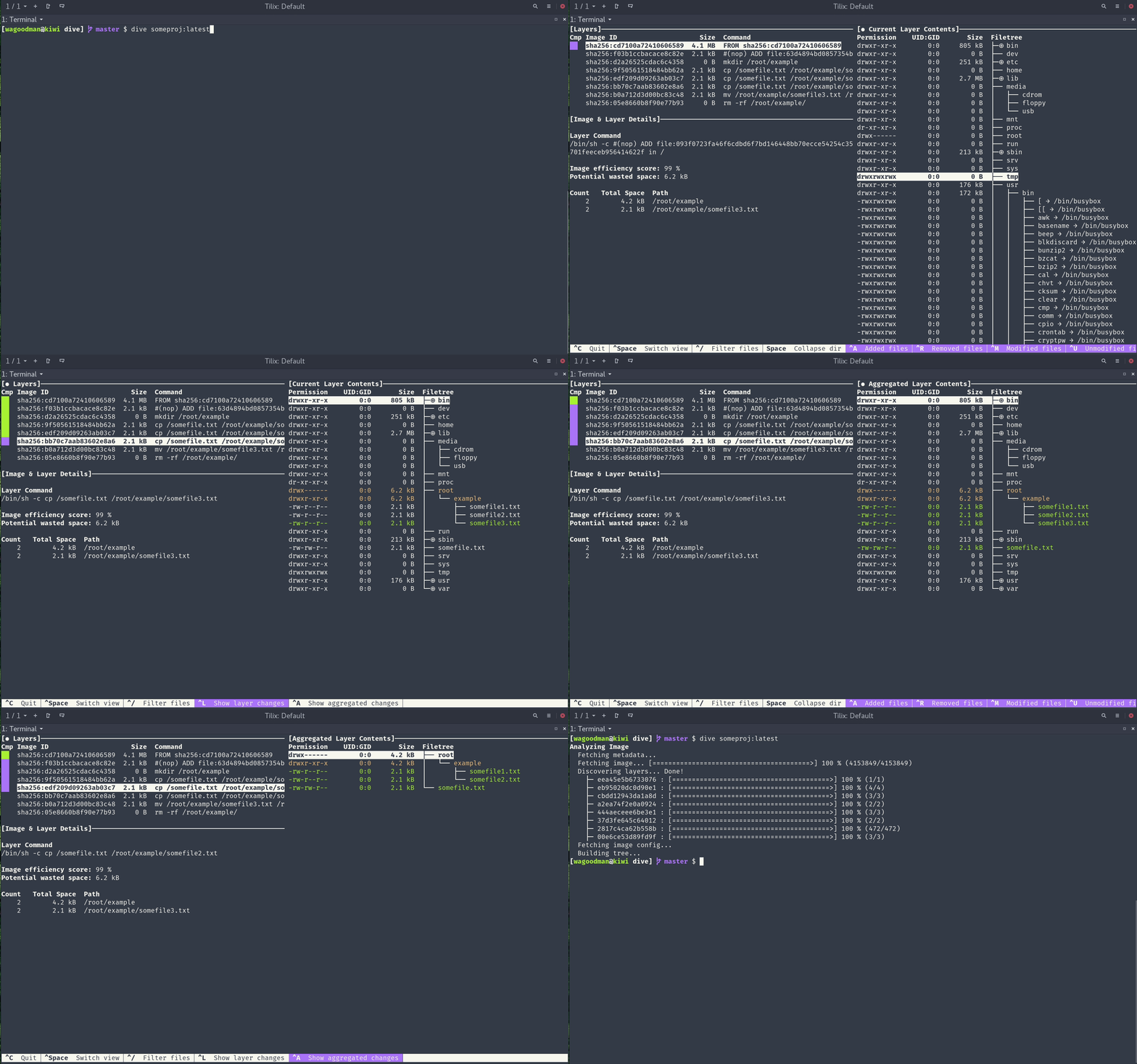
Once you've got the hang of how images are structured, dive is a very handy tool for exploring images. Not only will it let you examine individual layers, it will also analyze images and give some insight on how efficiently they have been built.
References
| ↵1 | They have a non-zero value in the SIZE column. |
|---|---|
| ↵2 | But see the dive tool below. |
| ↵3 | Note that while there are Docker commands between this one and the final big RUN command, none of them affected the file system, and so there was no need to create a new image layer. |
| ↵4 | The last 2 processes are the shell we started (to get into the container), and the ps command we just ran. |
| ↵5 | Because processes run in the context of their host machine, not in a completely separate virtual machine. |
| ↵6 | Think of carving slices out of a pie, and then smaller slices out of those. |


 I am a
