


The next thing we will set up is a local Docker registry, so that we don't have to push and pull images from an online registry (e.g. Docker Hub). As with the NFS storage, we'll "borrow" the vm-kcontrol server to do this.
Set up the registry
On the vm-kcontrol server, create a directory to store the images:
sudo mkdir -p /var/registry/{data,config}
Then create a configuration file /var/registry/config/registry.env that looks like this:
REGISTRY_STORAGE_FILESYSTEM_ROOTDIRECTORY=/var/registry/data
Run the registry container:
docker run -d --name registry \
    -v /var/registry:/var/registry \
    -p 6060:5000 \
    --env-file /var/registry/config/registry.env \
    --restart always \
    registry:2
Finally, open up the firewall on every machine that will use this registry[1]This means every machine in the cluster, as well as any developer machines that you want to push images from.:
sudo firewall-cmd --permanent --add-port=6060/tcp
sudo firewall-cmd --reload
Important note about SSL
While it's possible to configure Docker to run using TLS, I wasn't able to get it to work[2]It used to be possible to get things working with a self-signed certificate by setting the GODEBUG environment variable, but this was deprecated, and appears to have finally been disabled altogether.  On every machine that will use this registry (including the server), add the following entry to /etc/docker/daemon.json:
{
    "insecure-registries": [ "vm-kcontrol:6060" ]
}
Then restart the Docker service.
Test the registry
To test things, we'll write a simple containerized webapp, push it to our local registry, then get Kubernetes to pull it from there and deploy it into the cluster.
Create a simple Dockerized webapp
Create a file called serve.py somewhere that looks like this:
#!/usr/bin/env python3

import http.server
import socketserver
import socket
from http import HTTPStatus
import io
import time

# ---------------------------------------------------------------------

class Handler( http.server.SimpleHTTPRequestHandler ):
    def do_GET( self ):
        self.send_response( HTTPStatus.OK )
        self.end_headers()
        buf = io.StringIO()
        print( "Current time: {}".format( time.strftime("%c") ), file=buf )
        print( "IP address:   {}".format( get_ip_address() ), file=buf )
        self.wfile.write( buf.getvalue().encode( "utf-8" ) )

def get_ip_address():
    try:
        with socket.socket( socket.AF_INET, socket.SOCK_DGRAM ) as sock:
            sock.connect( ( "10.255.255.255", 1 ) )
            return sock.getsockname()[ 0 ]
    except Exception as ex:
        return str( ex )

# ---------------------------------------------------------------------

httpd = socketserver.TCPServer( ("", 8080), Handler )
httpd.serve_forever()
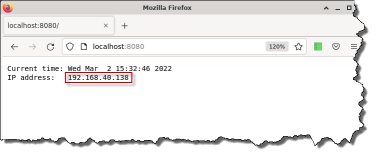 If you run it and open a browser at localhost:8080, it will show the current time and the server's IP address.
To Dockerize it, save the below as Dockerfile in the same directory:
FROM python:3-alpine

COPY serve.py .
CMD [ "python", "serve.py" ]
then build and run it:
docker build --tag get-time-and-ip .
docker run --rm -p 8080:8080 get-time-and-ip
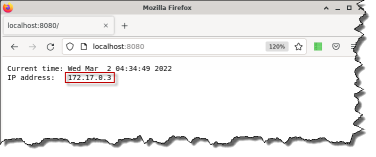 Refresh your browser, and it will show the current time, but note that the IP address has changed[3]The new IP address is one that Docker has assigned to container, to make it accessible from the outside..
Push the image to our local registry
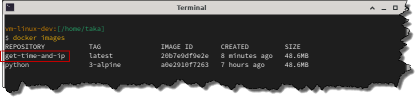 If we look at the Docker images on our development machine, we can see the get-time-and-ip image we just created.
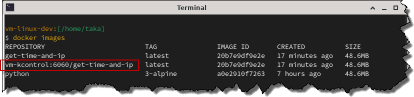 To push the image to our local registry, all we need to do is re-tag the image with a new tag that contains the address of the registry in it, and then push that[4]Docker may have problems with pushing images because of file integrity checksum errors, and while some people have reported being able to fix this by rebuilding their images, or other work-arounds, the only thing that worked for me was to run docker system prune -a, which will delete all your images
  :
:
docker tag get-time-and-ip vm-kcontrol:6060/get-time-and-ip
docker push vm-kcontrol:6060/get-time-and-ip
To check the images available in the registry:
wget -qO- http://vm-kcontrol:6060/v2/_catalog
And if you jump onto the vm-kcontrol server, you will also see that files have been created under /var/registry/data/.
Deploy the image to the cluster
To run our webapp using Kubernetes, create the following deployment:
cat <<EOF | kubectl apply -f -
    apiVersion: apps/v1
    kind: Deployment
    metadata:
      labels:
        app: get-time-and-ip
      name: get-time-and-ip
    spec:
      replicas: 2
      selector:
        matchLabels:
          app: get-time-and-ip
      template:
        metadata:
          labels:
            app: get-time-and-ip
        spec:
          containers:
          - image: vm-kcontrol:6060/get-time-and-ip
            name: get-time-and-ip
EOF
Create a service to expose the webapp to the outside:
cat <<EOF | kubectl apply -f -
    apiVersion: v1
    kind: Service
    metadata:
      name: get-time-and-ip
    spec:
      type: NodePort
      selector:
        app: get-time-and-ip
      ports:
      - protocol: TCP
        port: 8080
        nodePort: 30088
EOF
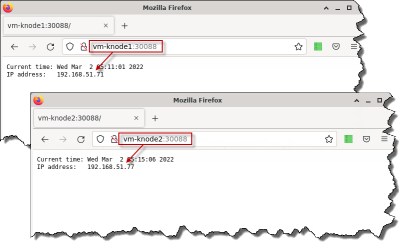 Open a browser at vm-knode1:30088 and vm-knode2:30088, and you should see the output of the webapp, but with different IP addresses.
References
| ↵1 | This means every machine in the cluster, as well as any developer machines that you want to push images from. |
|---|---|
| ↵2 | It used to be possible to get things working with a self-signed certificate by setting the GODEBUG environment variable, but this was deprecated, and appears to have finally been disabled altogether. |
| ↵3 | The new IP address is one that Docker has assigned to container, to make it accessible from the outside. |
| ↵4 | Docker may have problems with pushing images because of file integrity checksum errors, and while some people have reported being able to fix this by rebuilding their images, or other work-arounds, the only thing that worked for me was to run docker system prune -a, which will delete all your images |


 I am a
